Users & invitations
The Users screen is where administrators create staff accounts, assign roles and factories, and send email invitations.
Permission required: USER_READ (view), USER_CREATE, USER_UPDATE, USER_DELETE, USER_ASSIGN_ROLE.
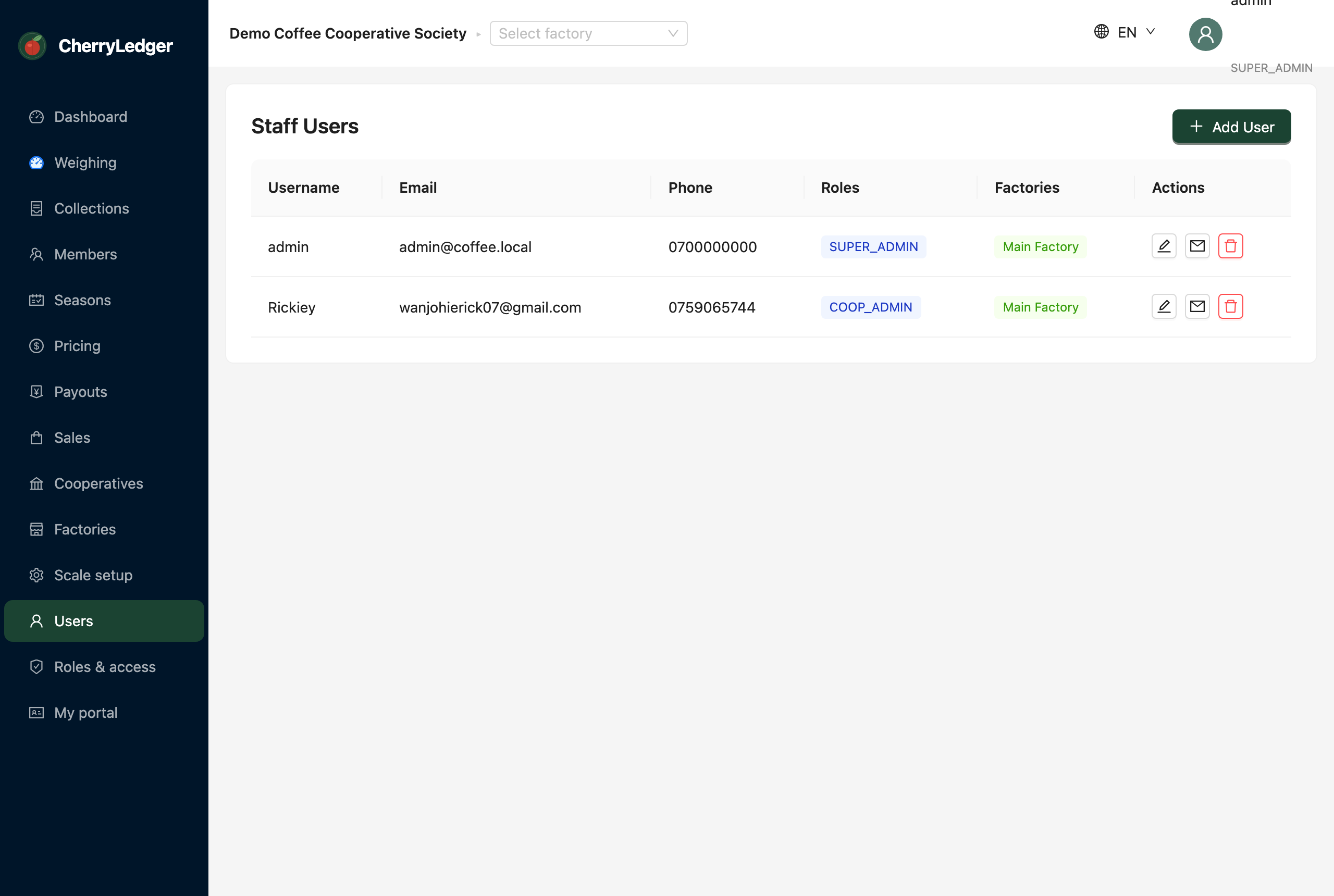
Who can see the Users screen
Only roles with USER_READ see this screen at all — a weighing clerk or cashier won't. What each admin
sees is scoped:
- Users from other cooperatives are never shown.
- A factory manager sees only staff who share their factory; cross-factory visibility needs
FACTORY_VIEW_ALL. - The list follows your active factory — with one selected you see the staff assigned to it. With no factory in context, administrators see everyone in the cooperative.
- Super Admins can switch cooperative in the header to administer another cooperative's users.
Can't find a user you know exists?
They're almost certainly in a different cooperative or factory than the one you're currently scoped to. Switch cooperative in the header, and clear or change the active factory.
Adding a user
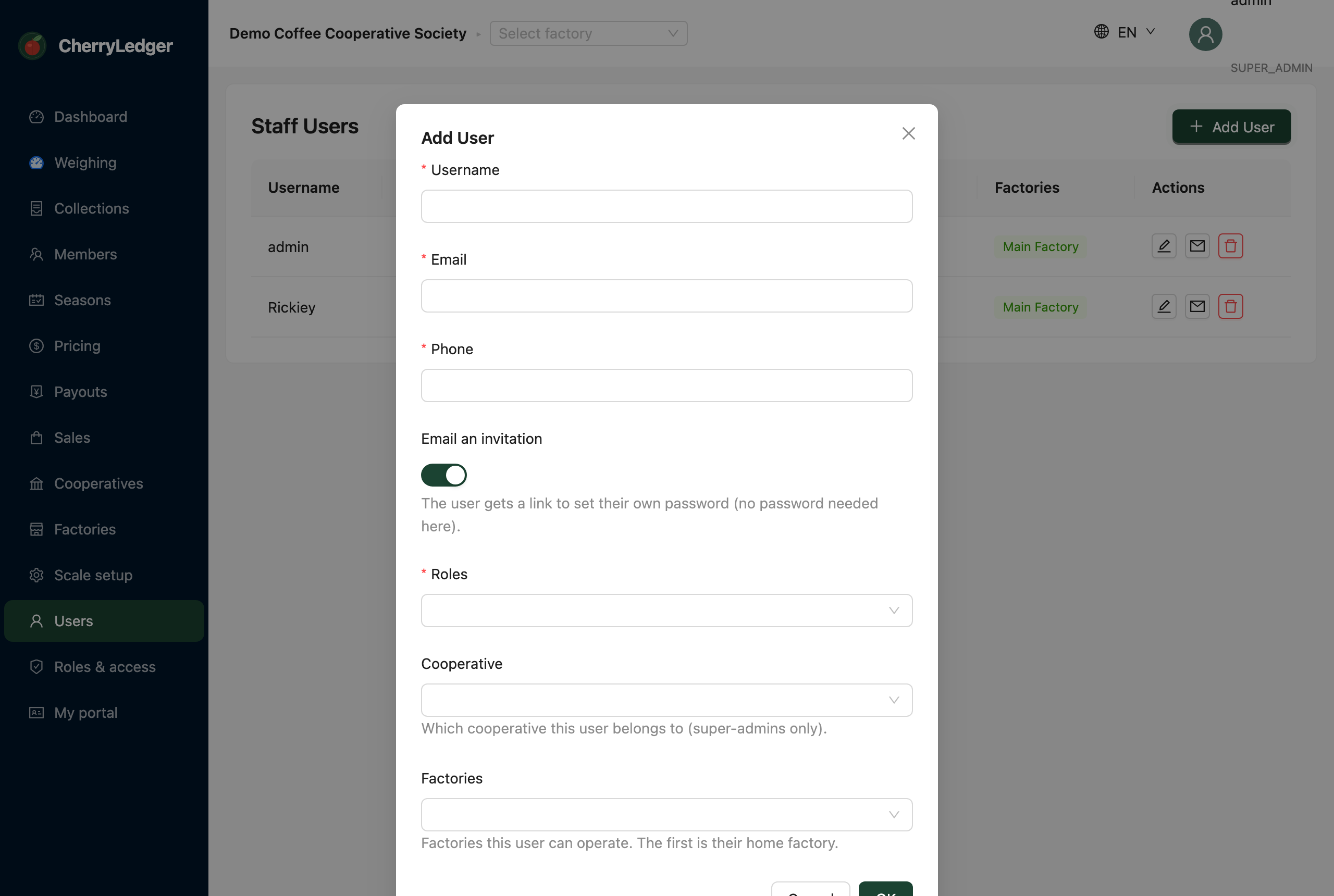
- Select Add user.
- Enter the username, email and phone.
- Leave "Email an invitation" on (recommended) so the person sets their own password, or turn it off and set a password yourself.
- Choose one or more roles and the factories they may operate.
- (Super Admins only) pick the Cooperative the user belongs to.
- Save.
Invitations
When "Email an invitation" is on, CherryLedger emails a single-use link that expires in 24 hours. The user clicks it to set their password and activate the account.
- Resend invitation — use the envelope action on a user's row to issue a fresh link (the old one stops working).
Editing and removing users
Use the row actions to edit a user (change roles, factories, reset password) or remove them. Removing a user also clears their invitations and sessions.
Super Admins also get a Move to cooperative action (the swap icon), which reassigns the user to a different cooperative and clears their old-cooperative factory assignments.
Assigning to a new cooperative
A Super Admin creating the first administrator for a new cooperative should pick that cooperative in the Cooperative selector and assign the COOP_ADMIN role. See Cooperatives → Onboarding.