Weighing & deliveries
The Weighing screen is where a clerk records each cherry delivery. Every delivery is tied to a member, a produce type and the current season, and produces a printable receipt.
Permission required: COLLECTION_CREATE · Typical roles: Weighing Clerk, Factory Manager, Cooperative Admin.
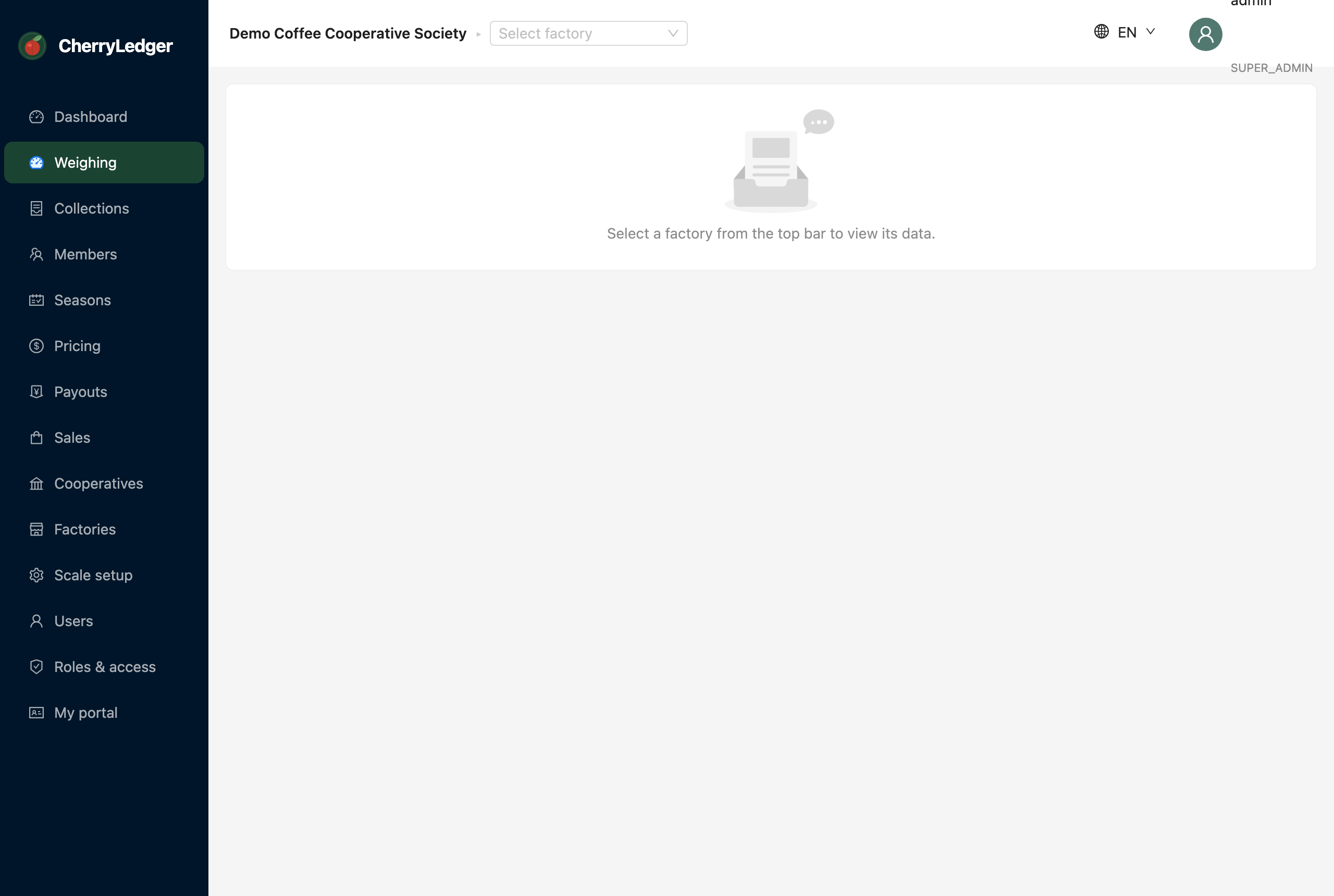
Recording a delivery
- Select the member delivering (search by name or member number).
- Choose the produce (e.g. cherry / grade) if your factory records more than one.
- Capture the weight:
- Automated — read straight from the connected scale (see below).
- Manual — type the weight when the scale isn't available.
- Confirm to save. A delivery receipt is generated for the farmer.
Automated weighing
CherryLedger reads your weighing-bay scale directly in the browser using the Web Serial API.
Requirements
- A Chromium browser (Chrome or Edge) on the weighing-bay computer.
- The scale connected by serial/USB.
- The factory's scale settings configured (port, baud rate, protocol).
When the scale is connected and streaming a stable weight, the reading appears automatically — the clerk just confirms the member and saves.
Manual weighing
If the scale is offline, switch to manual entry and type the weight. Manual weights are recorded the same way and clearly captured for audit.
Printing the receipt
After saving, print or re-print the delivery receipt — a thermal-roll slip showing the member,
weight, produce and running totals. This requires the RECEIPT_PRINT permission.
The receipt is sized for a 58 mm thermal roll (the common receipt printer width). In the
print dialog choose the 58 × 105 mm paper size with scale at 100% (or
"default") — never "fit to page" with a larger size, which shrinks the slip. For 80 mm
printers, open the receipt with ?paper=80 on the receipt link and pick 80 × 210 mm.
Automatic printing
Turn on Auto-print receipt on the weighing screen and every saved delivery immediately opens the print dialog with the receipt loaded — one keypress to print. The choice is remembered on that computer.
For a fully hands-free bay (no keypress at all):
- Set the thermal printer as the computer's default printer, with 58 × 105 mm as its default paper size.
- Launch Chrome with the
--kiosk-printingflag. Receipts then go straight to the printer, silently, the moment a delivery is saved.
The farmer's confirmation SMS is sent at the same moment — see SMS.
Reversing a delivery
Mistakes are corrected with a reversal, not a delete — the original delivery stays in the record
and a reversing entry is added, so the ledger remains fully auditable. Reversals require the
COLLECTION_REVERSE permission and are done from the Collections screen.
Tip
Use the Collections screen to review, search and reverse past deliveries.